Where to put a mortgage calculator on your adviser website
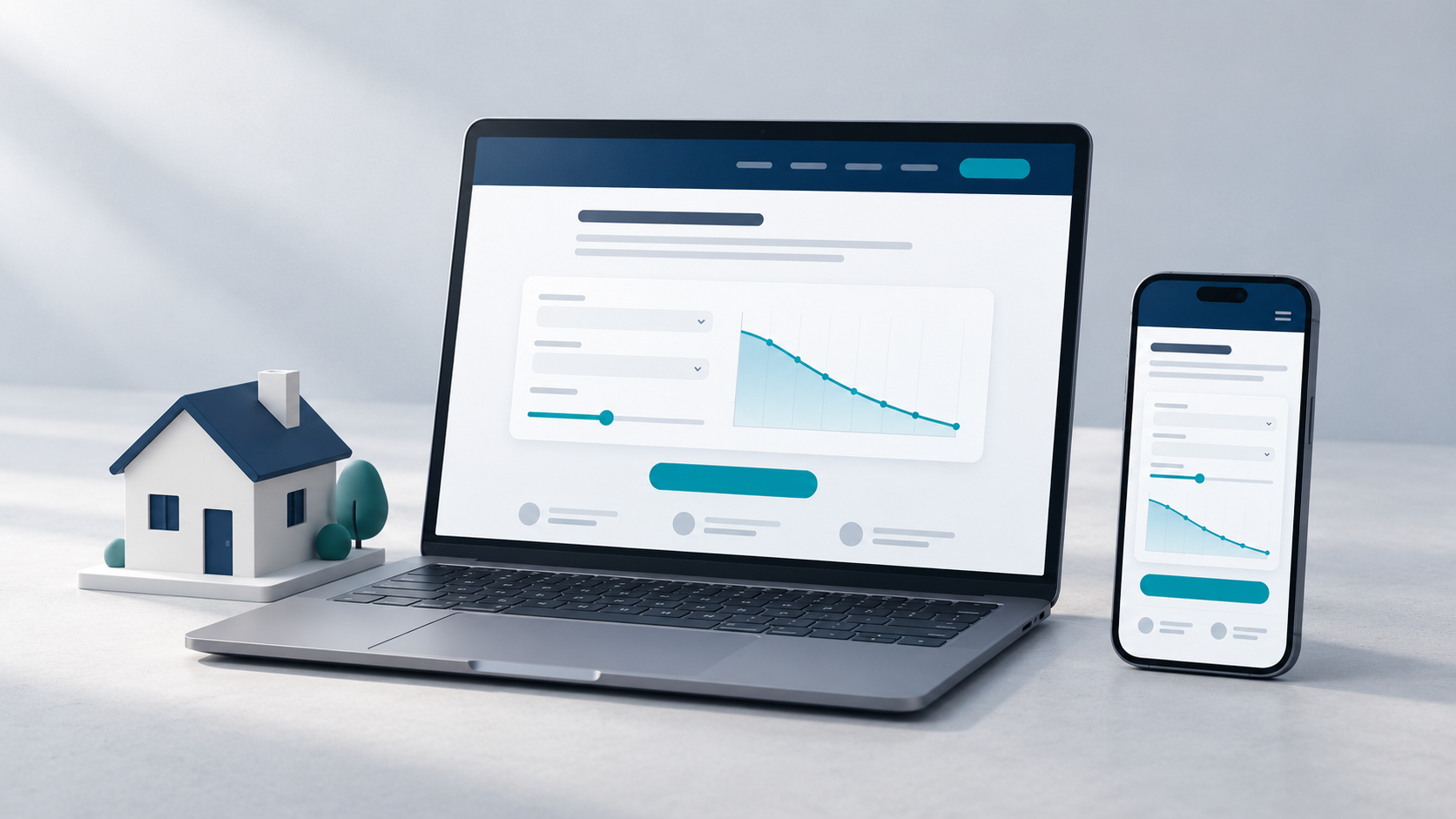
A mortgage calculator works best on a page with a clear question. Before deciding where to put it, ask what the visitor is trying to work out: likely repayments, borrowing capacity, or a possible change to an existing loan.
Then put the relevant calculator beside the explanation that helps them use it. Give the result some context and offer a clear way to discuss their situation with you.
Here is a practical way to plan that page.
Match the calculator to the page's question
Start with a page you already have. A first-home buyer page, a refinancing page and a mortgage repayment guide serve different needs, so they should not all carry the same calculator by default.
For example:
Buying a first home: How much could I borrow? Consider How Much Can I Borrow?.
Understanding repayments: What would my repayments look like? Consider Repayment Check.
Reviewing an existing mortgage: How do alternative loan scenarios compare? Consider Best Deal Check.
Planning to repay a loan sooner: How would extra repayments change my payoff date? Consider Mortgage-Free Date.
These are starting points, not a requirement to add four calculators. Choose the one that fits the conversation you want that page to support. Try it yourself before embedding it, including with less straightforward inputs.
If you have several useful tools, a dedicated calculator page can give clients one place to return to. Link to it from the relevant service pages so visitors can find the tool when they need it.
Explain what to enter before showing the tool
Give the calculator a short introduction. Say what it estimates, what information the visitor needs and what the result cannot establish.
For a repayment page, the introduction could read:
Explore repayments using a loan amount, interest rate and term. You can change the inputs to compare scenarios. The estimate uses the assumptions shown in the calculator; it is not a lender offer or an approval.
Keep that explanation close to the tool. A visitor following a shared link may arrive directly on this page without reading your homepage or service description.
Use a heading that names the question, such as "What could my mortgage repayments be?" A general heading such as "Tools" gives the reader less help choosing where to start.
Put the next step close to the result
After using a calculator, a visitor needs to know what to do with the estimate. Add a nearby invitation to discuss the inputs and their circumstances.
For example:
Want to talk through your figures? Book a conversation with our team. We can review the assumptions with you and discuss the information needed for the next step.
Connect that invitation to your actual contact or booking process. Avoid suggesting that clicking a button submits a loan application unless that is what the process does.
Do not assume the adviser will automatically receive the calculator's inputs or results. Unless you have verified a separate enquiry integration, ask clients to bring their figures or tell you which scenario they explored.
Make the page useful before and after a meeting
Once the calculator is on your website, you can send clients the address of that page.
Before a meeting, explain which tool to try and which information to have ready. Afterwards, use the same page to help them revisit the scenario you discussed. Tell them which assumptions to keep unchanged if they want to reproduce the comparison.
A referral partner can also link to your calculator page. If you create a QR code for a printed flyer or business card, point it at that page and test the destination. CalcStudio does not generate those QR codes or a separate branded client link for you.
Check the whole page on a phone
Review the page as a visitor would use it, rather than checking only that the calculator appears.
Can you understand the purpose without scrolling through a long introduction?
Are input labels, assumptions and results readable?
Can you enter and change figures comfortably?
Is the enquiry link easy to find and does it reach the right destination?
Does your disclaimer remain visible without covering the controls?
Check the page again after changes to your website theme or layout. The surrounding page is part of the experience too.
Start with one useful page
Choose one client question, one relevant calculator and one clear next step. Review that combination before expanding to other pages.
CalcStudio lets you embed calculators on your own website with your branding. Browse calculators to explore the options, or see how it works. When you are ready to choose an embedding package, Add to my website.